




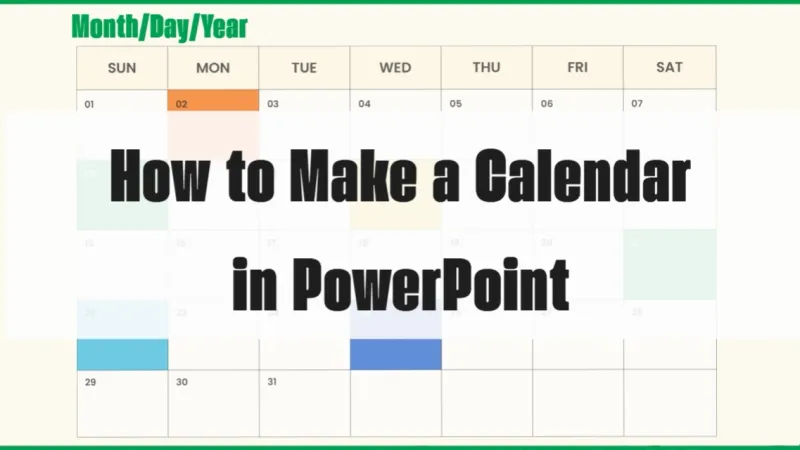

Creating a calendar in PowerPoint allows you to organize events, milestones, or project timelines in a flexible and visually appealing way.
In this guide, we will explore the definition of creating a calendar in PowerPoint, dive into its benefits across different contexts, provide practical tips for creating personalized calendars, and summarize how to make the most of this feature for effective time management.
Advantages of Creating a Calendar in PowerPoint
Creating a calendar in PowerPoint leverages the platform's tools and features to present dates, months, and events in a visual manner.
The resulting multifunctional calendar is suitable for various application scenarios, from project timelines to event schedules.

1. Optimize Visual Organization
Calendars present time in a clear visual format, helping to better organize and plan tasks.
2. Customizable Calendars
PowerPoint allows full customization, enabling users to design calendars that align with their brand, theme, or specific needs.
3. Easily Updateable
Unlike static calendars, PowerPoint calendars can be easily updated and modified to ensure relevance and accuracy.
4. Supports Team Collaboration
Shareable PowerPoint files help with collaborative planning, allowing teams to stay synchronized on upcoming events or deadlines.
Step-by-Step Guide: Create Your Custom Calendar
1. Set Up Your Calendar Slide

Open a new PowerPoint presentation, select the desired slide layout. Determine the calendar’s size and orientation, and adjust the slide dimensions accordingly.
2. Insert Date and Day Layout Table

Go to the “Insert” tab and select “Table” to create a date grid. Adjust the number of rows and columns based on the desired calendar layout.
3. Format Dates and Days

In the first row, enter the days of the week. In subsequent rows, input the dates. Format the text, fonts, and colors to enhance visibility and aesthetics.
4. Design Monthly Headers

Create visually appealing headers for each month. Use shapes, colors, or images to distinguish different months.
5. Add Event or Task Details

Use text boxes to add details of specific events or tasks on certain dates. Format the text and use color to highlight important information.
6. Incorporate Visual Elements

Enhance the calendar's visual appeal by adding icons, images, or symbols. Use visual elements to represent holidays, deadlines, or special occasions. You can also adjust the transparency of the table to align with your theme.
7. Apply Themes and Styles

Explore PowerPoint’s theme options and apply a unified style across the calendar. Ensure consistency in colors, fonts, and overall design to present a polished look.
8. Include Interactive Features

Create hyperlinks to allow users to switch between different months or link specific dates to more information. Adding interactive elements enhances the user experience.
9. Save and Share
You can save the PowerPoint calendar as a presentation or export it as an image or PDF. You can share the calendar electronically or print it for reference.
Creating a calendar in PowerPoint is a valuable skill that goes beyond simple date tracking; it serves as a dynamic tool for efficient planning and execution.
By following this guide and exploring the various features in PowerPoint, you can unlock the platform’s potential to create a functional and visually stunning calendar, empowering your team.
Introduction to Smallppt AI PowerPoint
By following this guide, you've learned how to create a practical and aesthetically pleasing calendar. However, if you'd like to save time on manual adjustments and better tailor your design to your needs, try using an AI PowerPoint generator.
For example, Smallppt’s AI PowerPoint tool allows users to easily customize slides, insert text, images, charts, and multimedia elements, giving you flexibility to handle every slide's content. Whether you're creating a project timeline for work or need to quickly generate a presentation, this AI for presentation solution will enhance your workflow, letting you focus more on strategic planning and execution.

Follow the guide, and then empower your work with this tool to easily create an efficient time management helper for you and your team!
FAQs About PowerPoint Calendar Creation
Q1. How can I quickly modify the dates on my calendar?
You can select the date table and double-click to directly edit the text to change the dates.
Q2. How can I make the calendar match my brand colors and style?
Use the “Table Design” panel to unify the theme colors and select the color scheme that fits your team. You can also choose a background color that aligns with your brand.
Q3. Can I add clickable event links to the calendar?
Select the date text box, click to insert a hyperlink (link to a document/webpage), and you can insert event links.
Q4. Will the calendar lose its format when exported?
When exporting to PPTX or PDF formats, the full format is preserved.
