





PDF (Portable Document Format) files are a crucial part of business workflows. Long-term archiving, legal compliance, and team collaboration are all hinged on the consistency and security provided by PDF documents.
The information contained in these documents is often confidential to companies and clients, so it must be password-protected. However, this password can sometimes prove to be a hindrance to business workflows. Luckily, there are numerous ways to safely remove a password from a PDF, including methods using Adobe Acrobat and Google Docs.
What is a PDF Password?
A PDF password is a security measure that you can apply to documents via a management tool, such as Adobe Acrobat. It effectively encrypts the document and prevents unauthorized parties from accessing it. Those with the password can normally read, edit, forward, and print the document.
There are two forms of PDF passwords, open and permission passwords:

- Open passwords: An open password is required to open and read the information contained in the PDF document. Without this, the document can’t be accessed at all.
- Permission passwords: This password is used by the owner of the document - or those with editing permission - to edit, print, and share the document. Without this password, viewers may also be unable to copy text from the document.
Why Remove A PDF Password?
Removing a PDF password can make your documentation more accessible for all.
Perhaps when you first created the document, the information was sensitive and not ready to be shared with employees or third parties. At this point in time, you needed the document to be password-protected in order to prevent unauthorized access.

However, now the document is shared widely among employees, clients, and customers. The password doesn’t serve a purpose anymore and presents an unnecessary block on information that is now public.
The password can hinder document reading and editing, prevent team collaboration, and stop the document from being printed. Given these reasons, it makes sense to remove the password at this point in time.
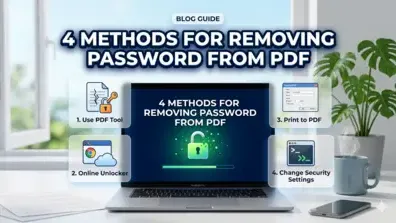
Methods for Removing a Password from a PDF
It’s important to note that for most methods, you need to know the password.
Method 1: Adobe Acrobat
If you use Adobe Acrobat, you can easily add and remove passwords from your documents. Of course, this method costs, as you’ll need an Adobe Pro or Standard account. Alternatively, you could use online tools such as Smallppt.

To remove a password using Adobe, follow these instructions:
1Open the document in Adobe Acrobat
Open the document you wish to remove the password from.
Next, select ‘All tools’ → ‘Protect a PDF’.
2 Change the settings
You can change the password settings by clicking on ‘ADVANCED PROPERTIES’ → ‘Set security properties’ → ‘Security’ → ‘Change Settings’.
3Select the password you want to remove
To remove the open password, deselect the option for ‘Require a password to open the document’.
To remove the permission password, deselect the option for ‘Restrict editing and printing of the document’.
Here, you may be prompted to submit the password to confirm the deselection.
4Confirm and save
Close the dialogue box by clicking ‘OK’, and then ‘OK’ again to confirm all the changes you have made.
Lastly, save the document with the changes made. This will mean that the document will be password-free from now on.
Method 2: Google Drive
You don’t need to pay for a premium membership of Adobe to add and remove PDF passwords - you can perform these tasks on the likes of Google Drive.

1Upload the PDF to Google Drive
Click on ‘My Drive’ → ‘File upload’.
From here, upload the file you wish to remove the password from.
2Open Google Docs
Right-click the file and click ‘Open with’ → ‘Google Docs’.
3Download a new version
With the file open on Google Docs, simply click on ‘File’ → ‘Download’.
You’ll then have a new version of the file downloaded without any password restrictions.
Method 3: Mac Preview
If you use a Mac, you can also remove a password from a PDF using Preview.

1Open the document
From your saved files, double-click on the document.
2 Enter your password
Like many methods, you need to know the password to remove it.
3Export the file
Click ‘File’ → ‘Export’.
When doing this, make sure that ‘PDF’ is still selected as the format field.
4Edit permissions
At this point, you’ll also be able to edit document permissions. Select and deselect the permissions you want to grant.
Once you’ve selected everything, enter the password and click on ‘Apply.’
Method 4: The ‘Print’ method
If the document does not have printing restrictions, you could try the ‘print’ method.

1 Open the document
Open the document on whatever document viewer you prefer to use.
Like other methods, you’ll need to enter the password to access the document.
2 Select print
Select the ‘Print’ option on your document viewer.
3 Save a new version
In the ‘Print’ window, click ‘Destination’ → ‘Change’ → ‘Save to PDF’.
Once saved, you’ll have a new password-free version of the document available.
Comparison table of the 4 methods
| Method / Tool | Features & Benefits | Best For | Pricing |
|---|---|---|---|
| ① Adobe Acrobat | Allows for granular control over security settings; easily toggle "Open" and "Permission" passwords via Advanced Properties. | Professional users requiring high security and precision. | Paid (Adobe Pro or Standard) |
| ② Google Drive | Open PDF as a Google Doc and re-download to create an unrestricted version. No specialized software required. | Users looking for a free, web-based solution without installing apps. | Free (Requires Google account) |
| ③ Mac Preview | Uses the "Export" function to save a new, password-free version of the document. Built into macOS. | Mac users who want to handle tasks using native system tools. | Free (Built-in to macOS) |
| ④ The 'Print' Method | The "Save to PDF" print destination strips security layers quickly if the file does not have printing restrictions. | Anyone needing the fastest removal method on any operating system. | Free |
FAQs
Q1. How do you turn a password-protected PDF into a regular PDF?
Most people commonly use a PDF editor tool such as Adobe Acrobat. Alternatively, you can also use free methods via tools and apps such as Smallppt, Google Drive, and Mac Preview.
Q2. Is it legal to remove a password from a PDF?
If the document is yours, you have the right to add or remove passwords, meaning it is not illegal to do so. However, if you’re removing the password to gain access to documents you don’t have access to, it is unethical and potentially illegal.
Q3. Does removing the password change the PDF?
No, removing the password does not alter the content in any way. The text, formatting, and overall features of the document will remain the same. The only thing that will change is who has access to the document, and the fact that it can now be accessed without a password.
Q4. Can I remove a PDF password using Chrome?
Yes, you can remove a PDF password using Chrome by opening the document in the Chrome window and using the ‘print’ method. This involves you selecting the ‘print’ option and saving the document as a new PDF.
Conclusion
You can keep your document handling efficient through effective password removal skills. If your document no longer requires password protection, you can easily remove it via Adobe Acrobat. Alternatively, you can do the job free of charge through Mac Preview and Google Chrome, or by trying the ‘print’ method.
